Guide: Market features
Tickers, order books, network fees, transfer calculator, and coin map
The Market section is available with a Market Scanner or Premium subscription. It includes tools for market data analysis: a summary table of tickers from multiple exchanges, real-time order books, blockchain network fees, a transfer calculator between exchanges, and a coin map. Below is a step-by-step description of each tool.
Aggregated tickers
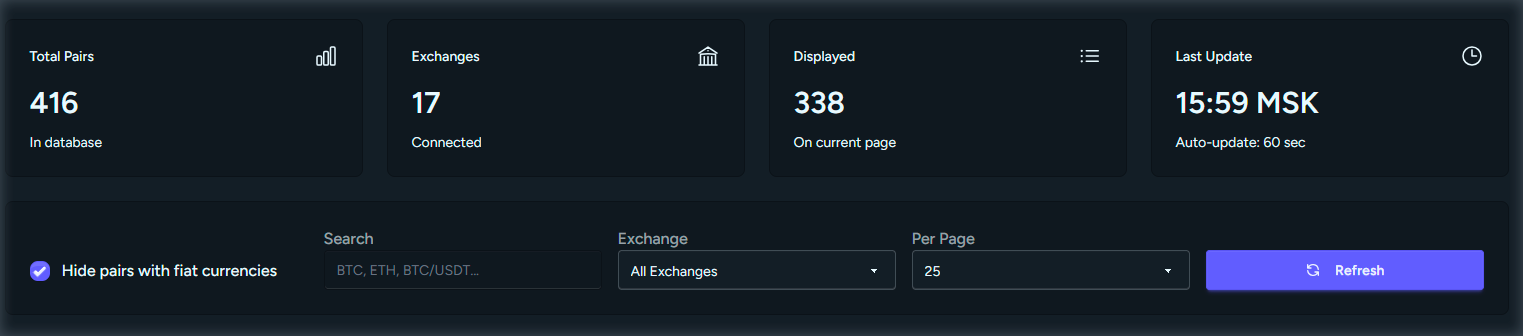
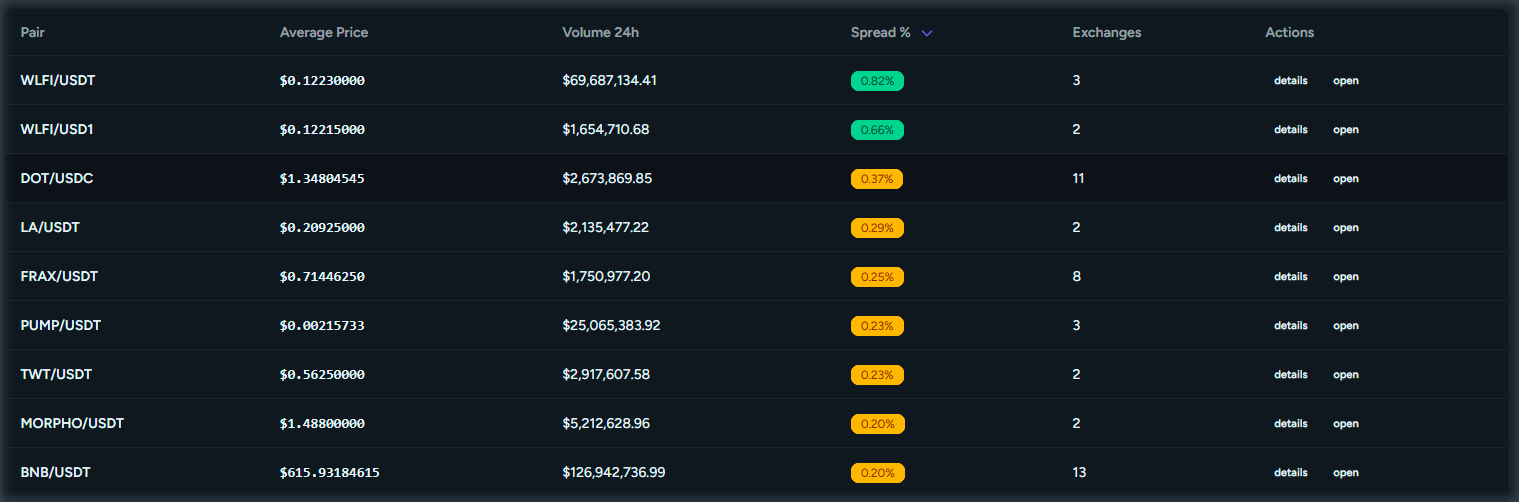
The Tickers page shows a summary table of trading pairs from connected exchanges (Binance, Bybit, KuCoin, etc.). For each pair you see: symbol, average price, best bid and ask, spread in absolute and percentage terms, and the number of exchanges with valid data.
How to use: open the Tickers section from the menu or dashboard. Use search or filters to find a pair (e.g. BTC/USDT, ETH/USDT). Sort the table by spread or volume. Click a row or the go button to open the order book for that pair. Data updates automatically at a set interval.
Order book (depth)
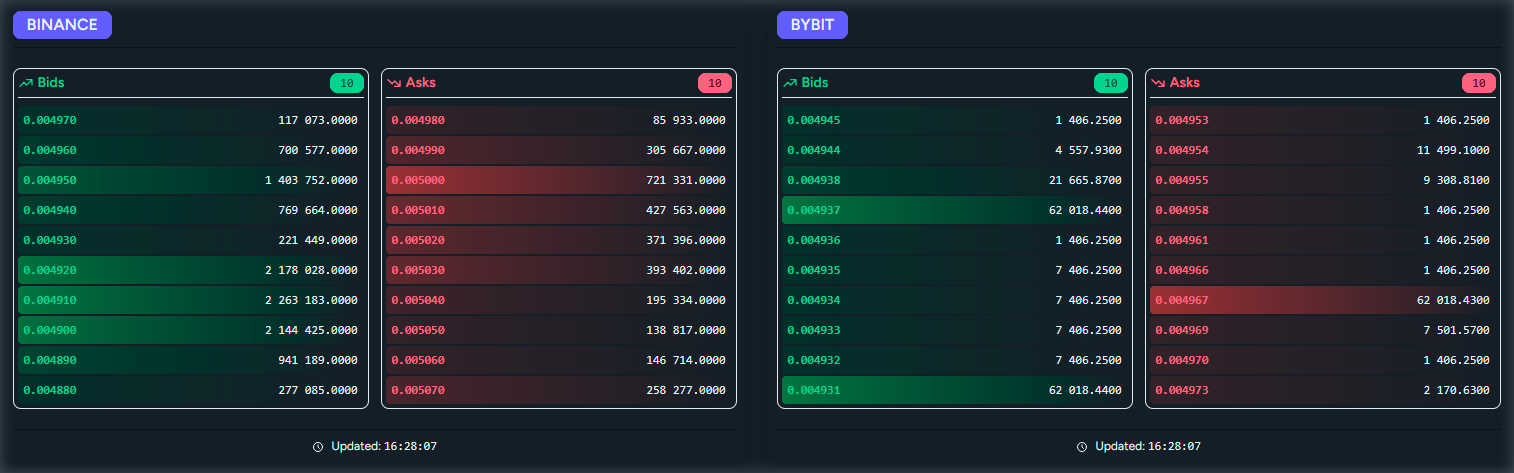
The order book shows market depth for the selected trading pair: buy (bid) and sell (ask) orders from multiple exchanges in one place. You see price levels, volumes at each level, and the current spread.
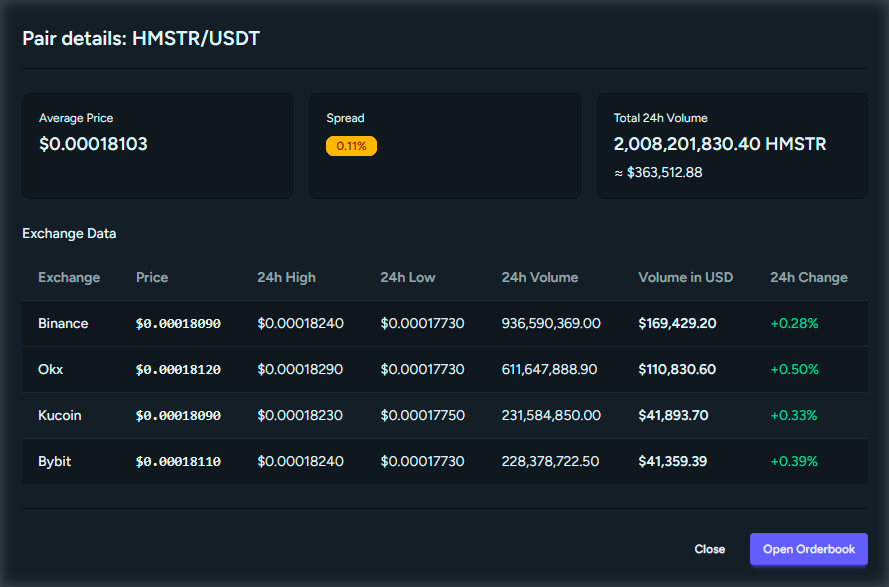
How to open the order book: from the tickers table, click a pair or the order book button; or open the Order book section and enter the pair symbol. The page shows: summary stats (average price, 24h volume, spread), a block with prices per exchange, then the order book - a bid/ask table with cumulative volumes. Data updates in real time via WebSocket.
Network fees and deposit/withdrawal availability
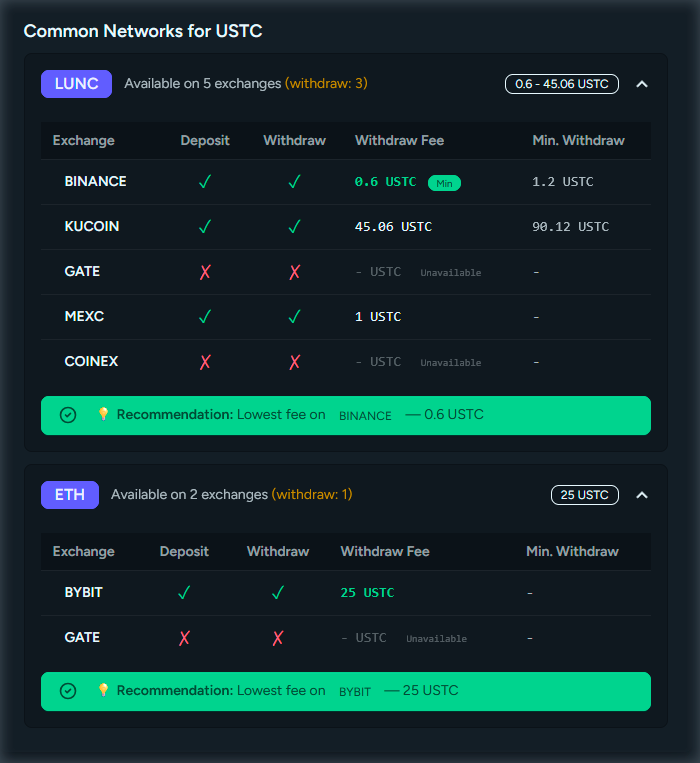
The Network fees block is on the order book page, below the order book. It shows deposit and withdrawal availability per exchange and network, as well as current withdrawal and transfer fees in blockchain networks for the pair’s base and quote currencies (e.g. ETH and USDT). Networks (ERC-20, BEP-20, TRC-20, etc.) and approximate fees are listed.
How to use: open the order book for the pair you need (e.g. ETH/USDT). Scroll to the Network fees section. For each currency you see a list of networks with deposit/withdrawal availability per exchange, fees, and limits. Use this when choosing a network for withdrawals and when estimating transfer cost between exchanges or to a wallet.
Information on network fees and deposit/withdrawal availability for some coins on exchanges may be missing. We are working on expanding coverage and improving data accuracy.
Transfer calculator between exchanges
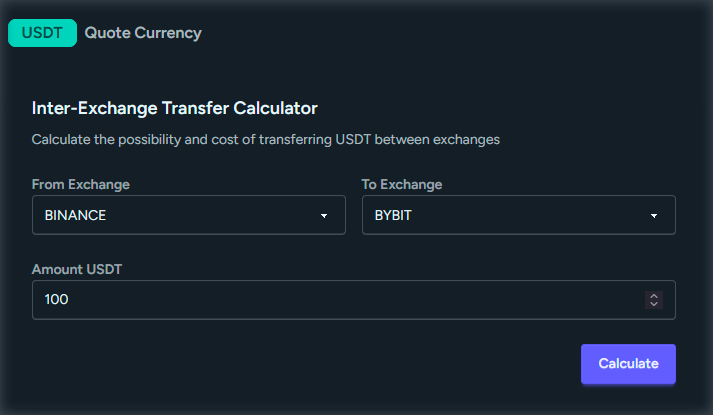
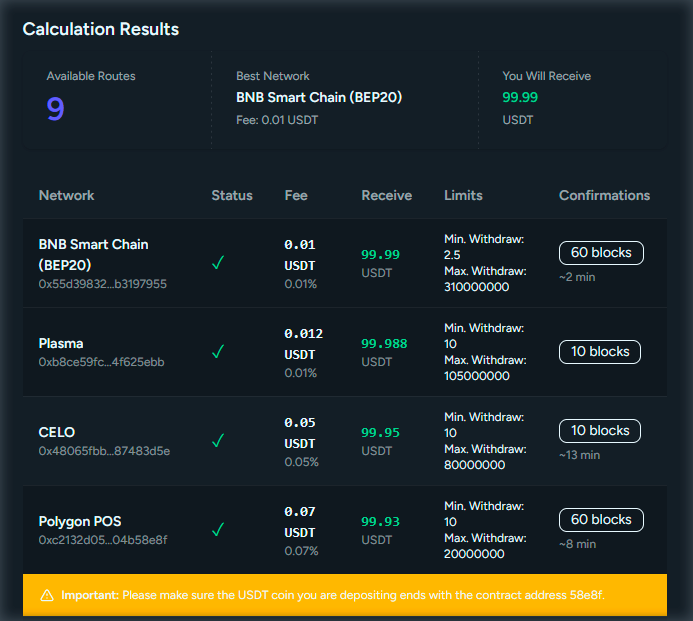
The calculator lets you work out whether and at what cost you can transfer crypto from one exchange to another: you select source and destination exchanges, network, and amount; the service shows the fee and the amount that will arrive.
How to use: on the order book page for a pair (e.g. USDT/BTC), find the Transfer calculator or Transfer between exchanges block. Select source and destination exchange and, if needed, the network. Enter the amount. The system will compute the transfer route, network fee, and amount received. Use this before withdrawing to estimate real costs.
Coin map
The Coins section (coin map) lists cryptocurrencies with aggregated data: price, 24h trading volume, 24h price change, market cap. For each coin you can open a detail page with pairs on different exchanges and go to the order book for a chosen pair.
How to use: open Coins from the menu or dashboard. Search by name or symbol and sort by volume or price change. Click a row to open the coin page: you see stats (price, volume, market cap) and a list of trading pairs on exchanges. From a pair you can go to the order book or pair details.
Access to the Market section
All tools described (tickers, order books, network fees, transfer calculator, coin map) are available with a Market Scanner or Premium subscription. You can subscribe on the pricing page.
View pricing